Support
Vending Machine Advertisement Setting Guide

Difficulty
Methods
2
Time Required
00:20:00 - 00:40:00
Introduction
A vending machine equipped with a digital display provides a powerful and cost-effective advertising opportunity directly at the point of purchase. Follow this guide to learn how to set up advertisements on your vending machine.
Tools
Computer
USB Thumb Drive (optional)
⚠️ USB Drive Requirements (Important):
Format: The USB drive must be formatted as FAT32.
Capacity: The recommended size is 16GB or smaller. Larger drives (e.g., 32GB) may cause the system to fail to read the USB or produce errors.
Parts
Tutorial Videos
If you prefer a video guide, you can follow our step-by-step tutorials on YouTube. The Online Ad Setting video is designed for machines running software version 5.4.9.249 and newer, while the USB Ad Setting video is intended for machines using older software versions.
To learn how to update your machine’s software, please refer to our software update guide. Your machines’ software version can be found at the top left of the display.
Otherwise, if you prefer written instructions, simply scroll down to read the full step-by-step guide on how to set up advertisements on your machine.

Online Ad Setting:
For software version 5.4.9.249 and newer
To set up advertisements through the online dashboard, start by ensuring your vending machine’s software version is 5.4.9.249 or higher. Any version above this supports remote advertising. If you wish to upgrade your software to gain this functionality, please click the button below to learn more.
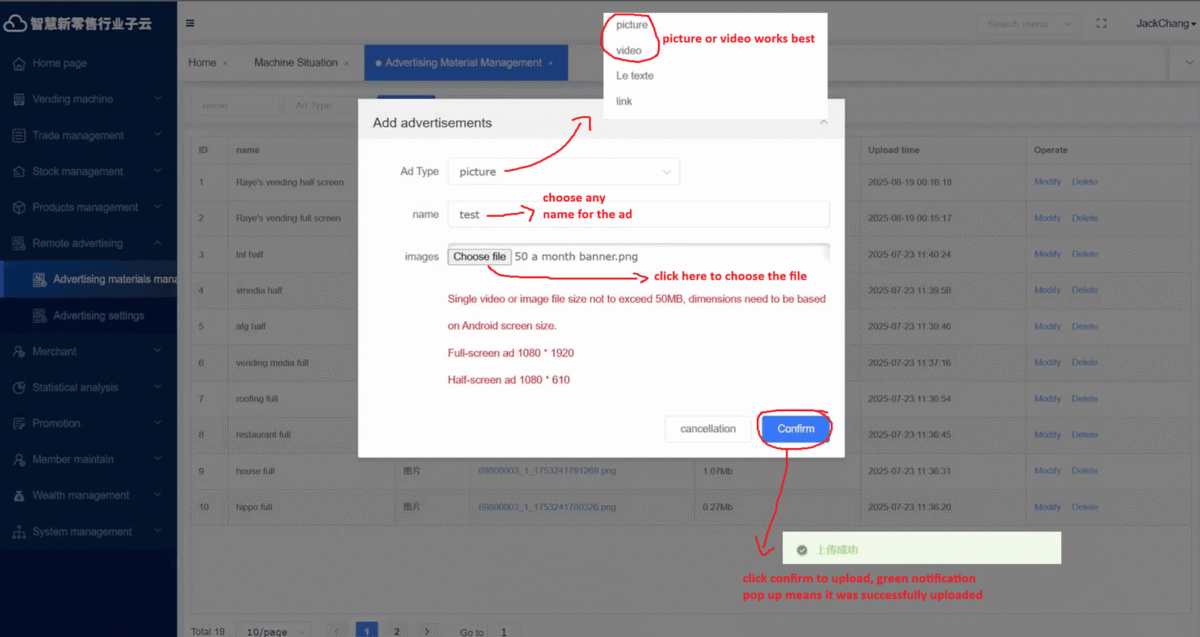
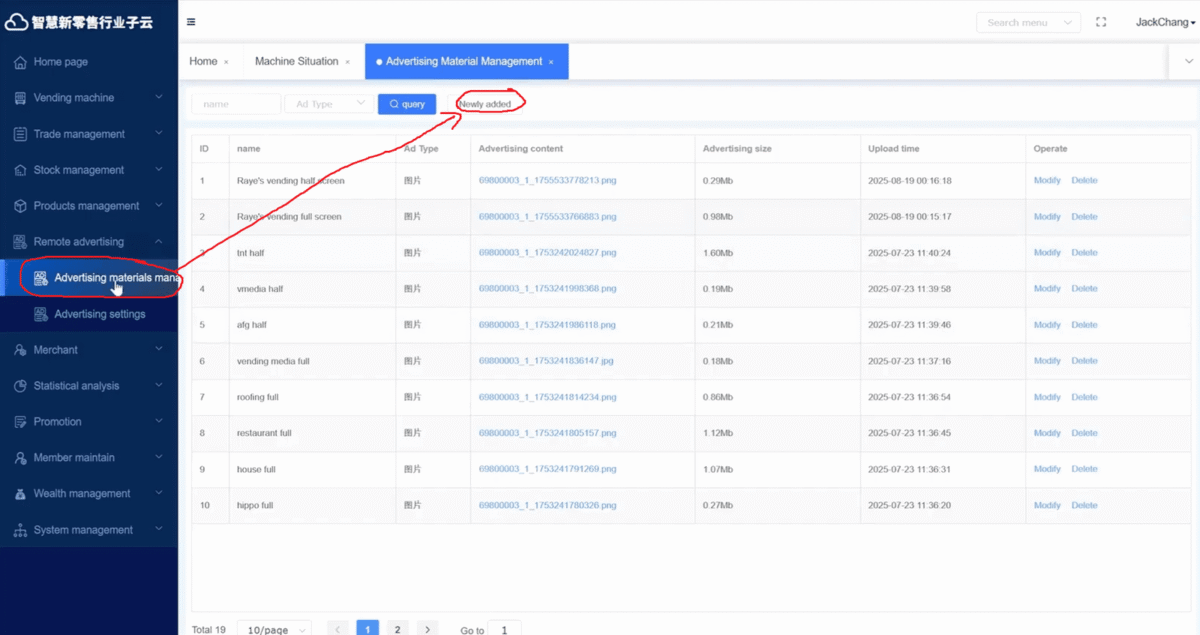
Once you confirmed you are on the right software version, go to the Remote Advertising tab and open Advertising Material Management. Here you can view all previously uploaded ads. To upload a new one, click Newly Added at the top.

Images and videos type ads work the best best—just be sure to follow these guidelines:
Full-screen ad: 1080 × 1920
Half-screen ad: 1080 × 610
File size: Under 50MB
Formats: PNG or JPEG recommended for images, mp4 recommended for videos
Give your ad a name (e.g., “test”), choose the file from your computer, and click Confirm. A green notification means your material was uploaded successfully.

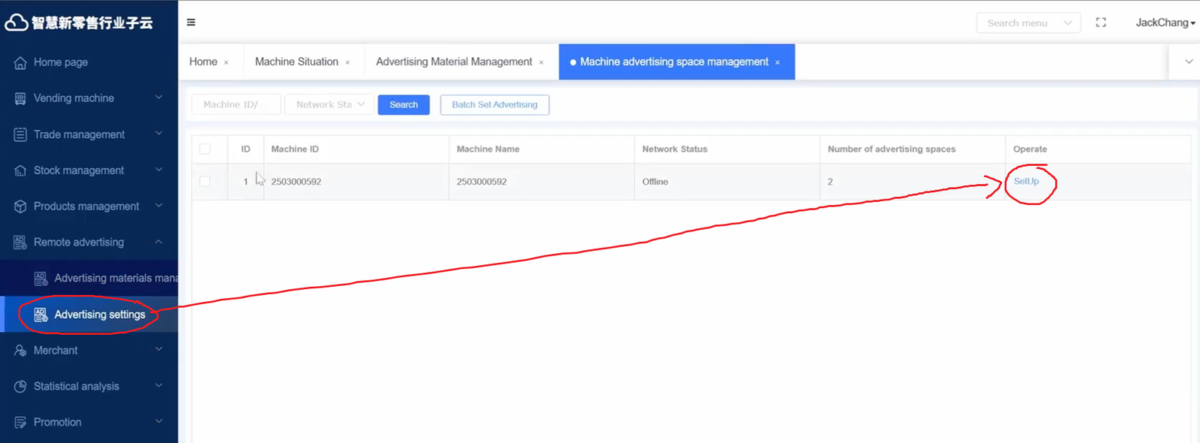
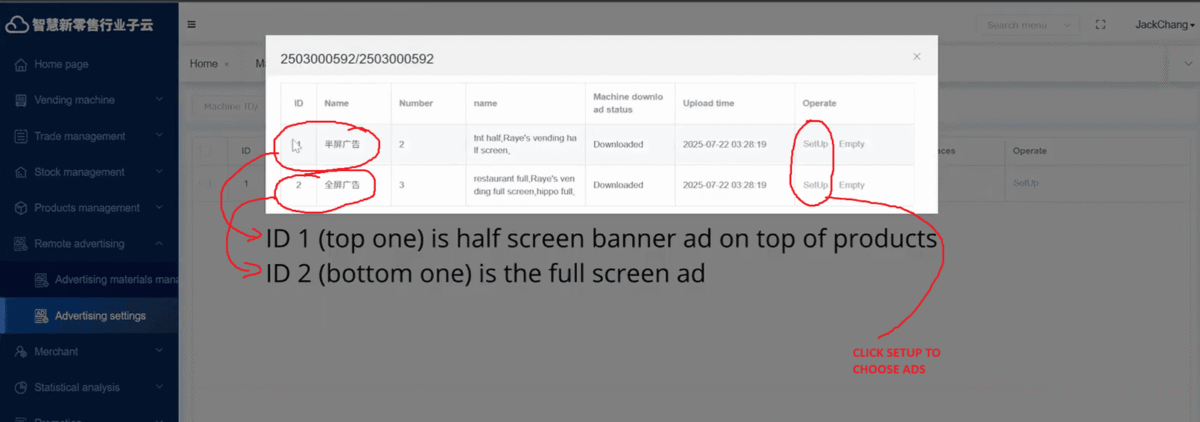
To push the ad to your machine, go to Advertising Settings, find your machine by matching the Machine ID, and click Setup. For half-screen ads, select Setup under the first section (ID 1). For full-screen ads, select Setup under the second section (ID 2).


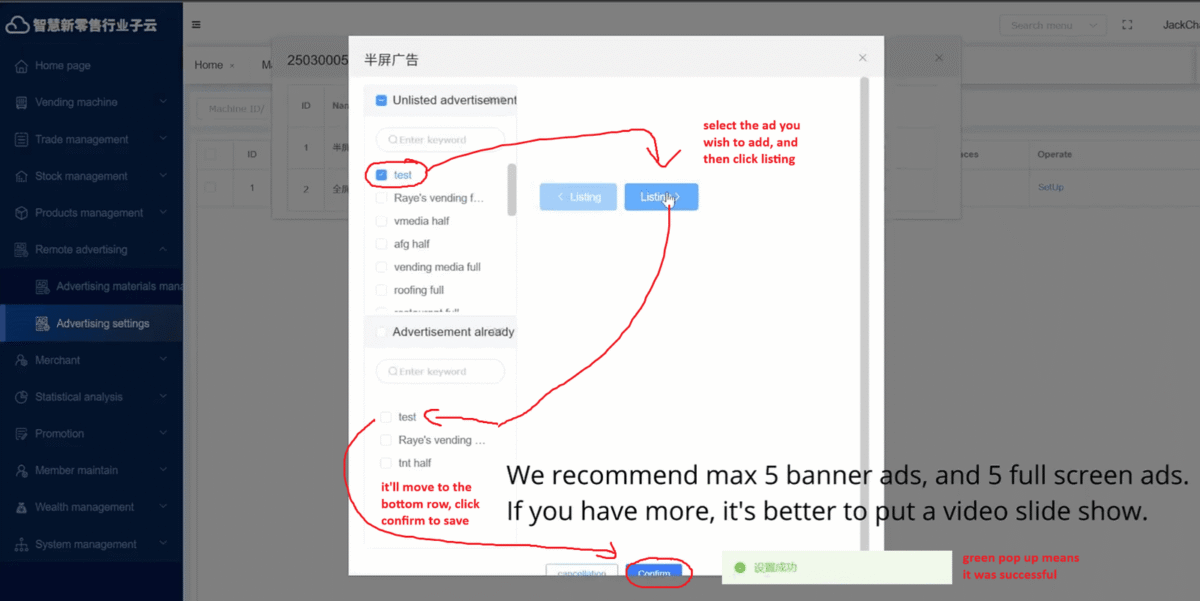
Choose the ad you want on the machine, click Listing to assign it to the machine, it will then show up at the bottom. Then press Confirm to save the ad assignment. A green prompt will confirm success.
Make sure your machine is online. The advertisement will download automatically within a few minutes.
Note: After the screen is untouched, it takes 120 seconds (2 minutes) for the machine to return to the full-screen advertising display by default.

USB Ad Setting:
For older software versions
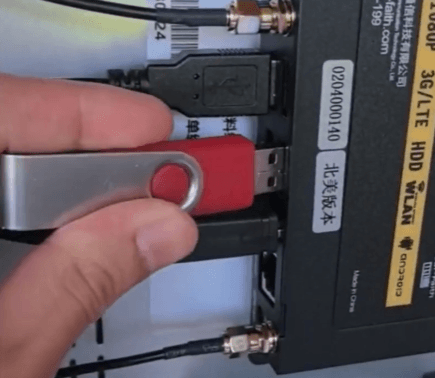
To set advertisements directly on the machine using a USB drive, start by plugging your USB into one of the USB ports located at the back of the machine (on the black control box).
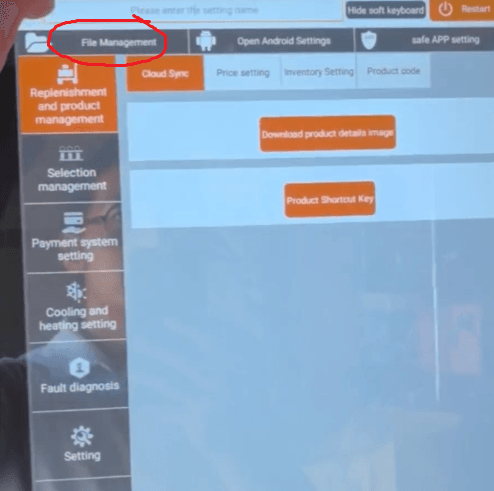
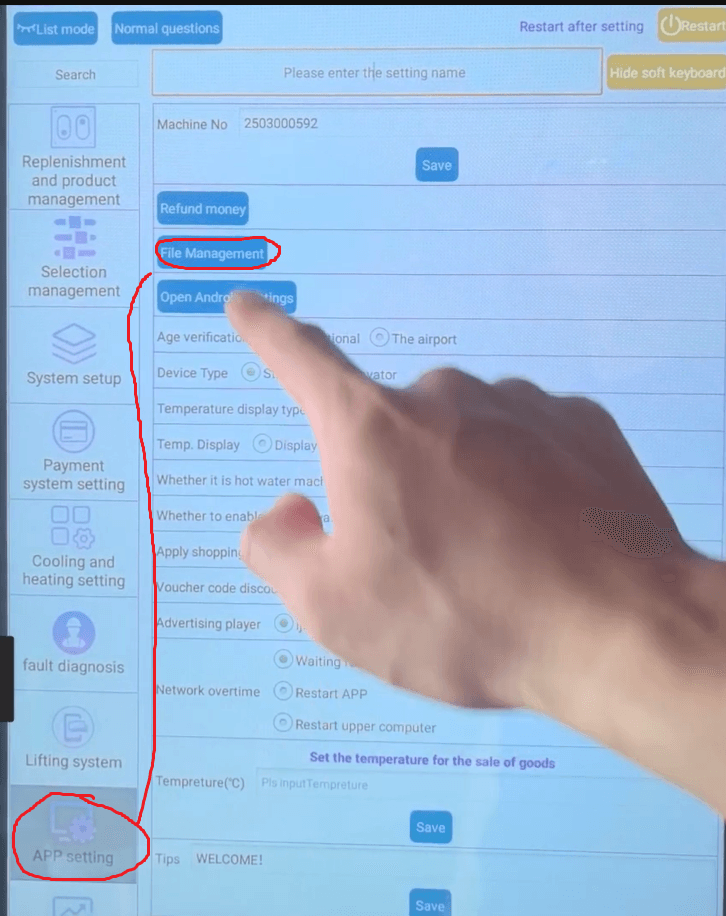
Next, open File Management.
On the new UI, File Management is available directly on the main settings screen.
On the old UI, it is located under APP Setting.
Please refer to the photo for visual clarification.


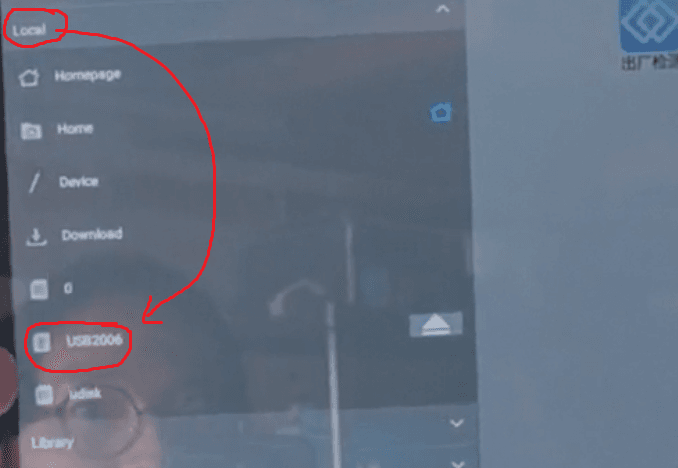
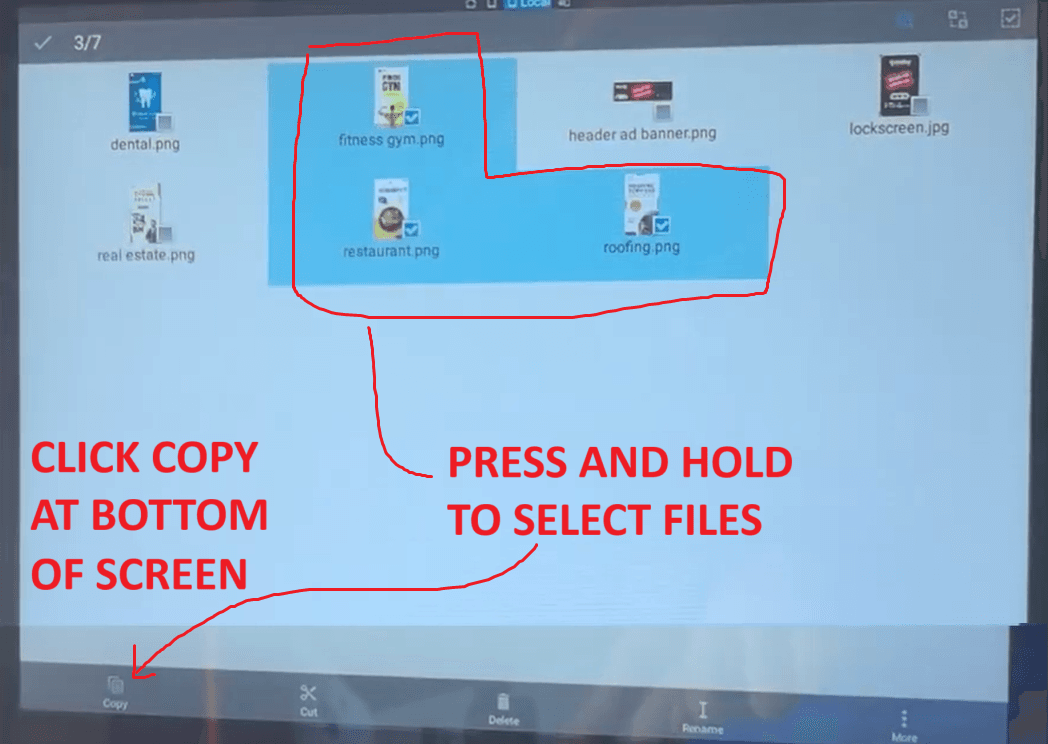
Tap the three-bar menu icon, choose your USB drive (names will vary), and locate your full-screen advertising images or videos. Select the ads you want to display and click Copy at the bottom left.


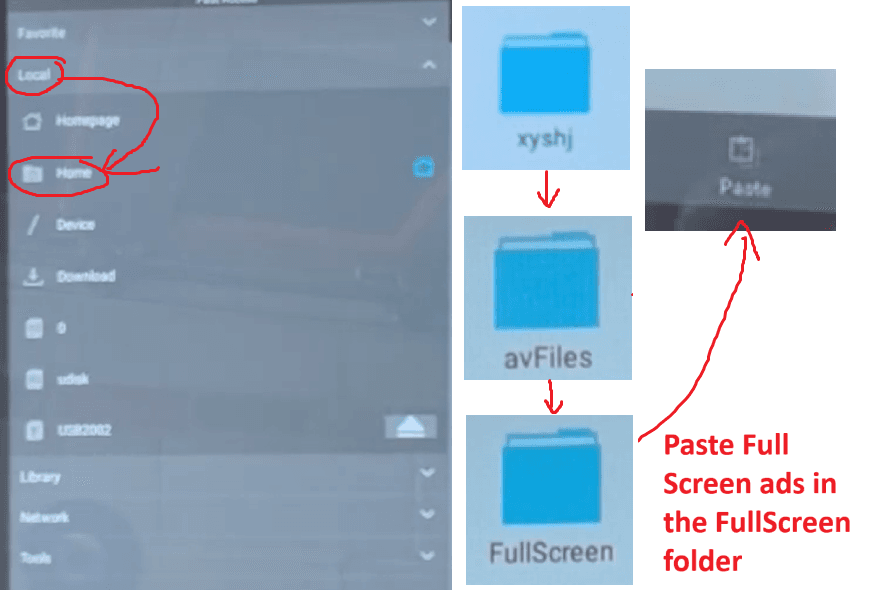
Next, return to the menu, go to Home, open the XYSHJ folder, then avFiles, and finally FullScreen. Paste the full-screen image or video ads here.
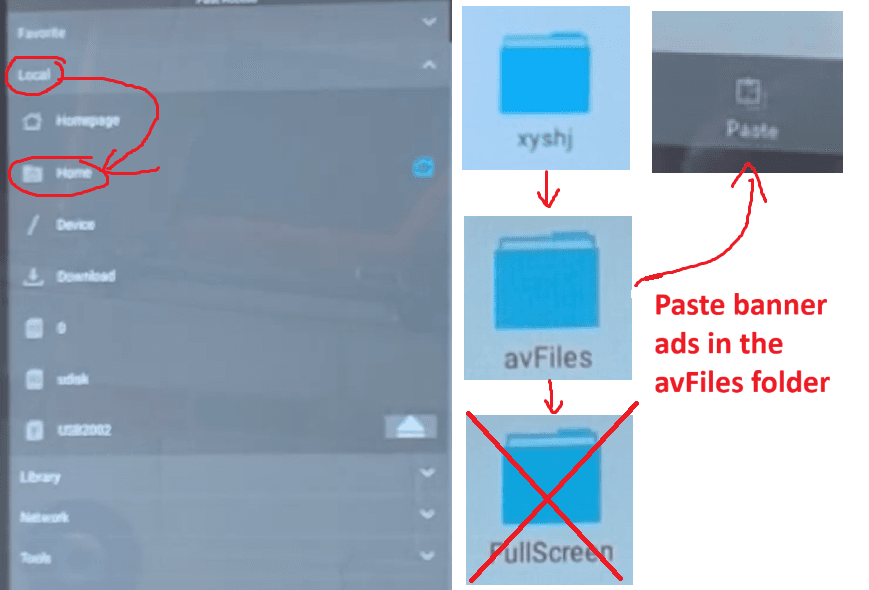
Then return to your USB drive per the previous step, find your banner ads, select and copy them, and navigate back to Home → XYSHJ → avFiles. This time, paste the banner ads directly inside the AV Files folder.

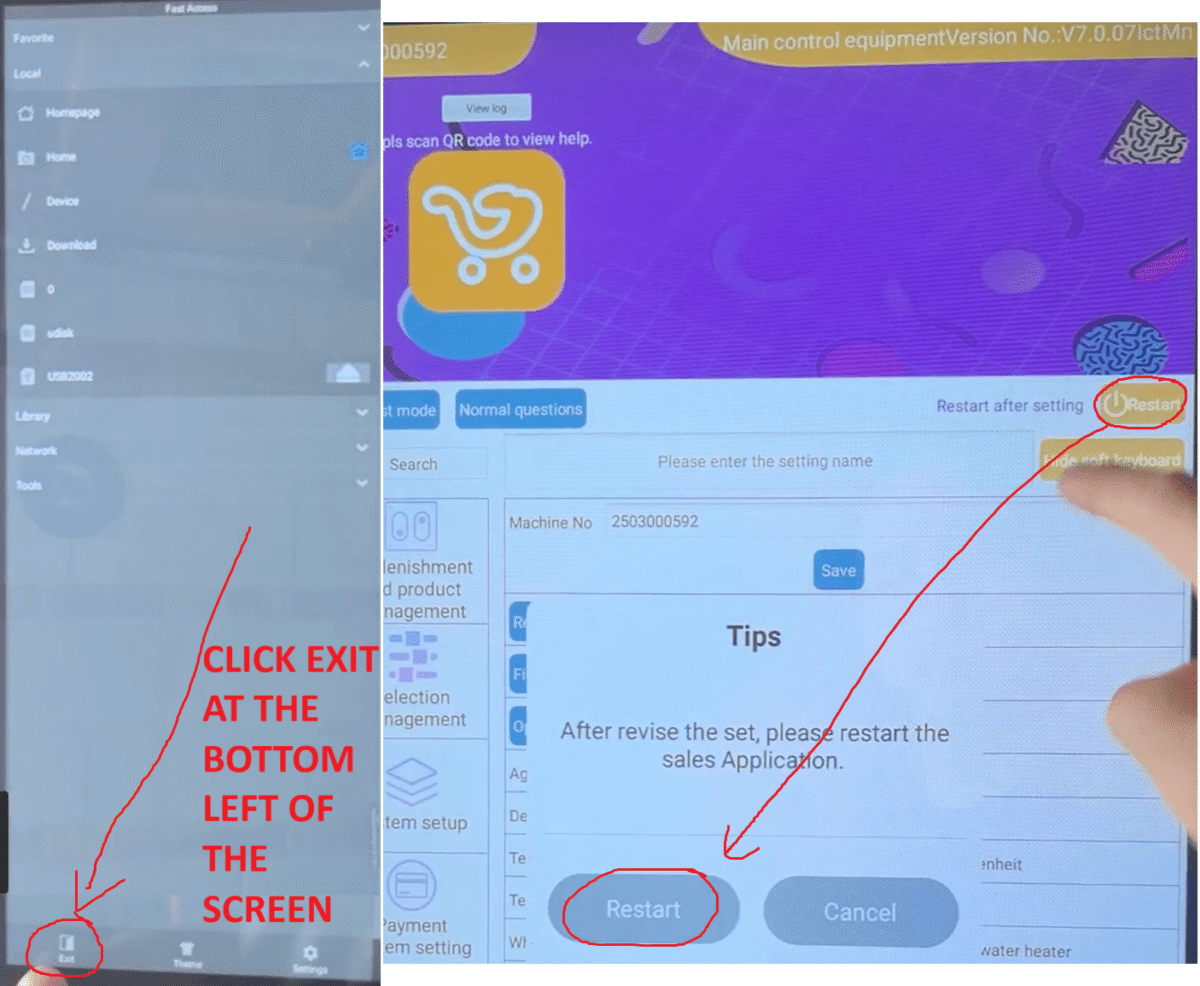
When finished, open the menu and select Exit, then restart the machine to apply your changes.
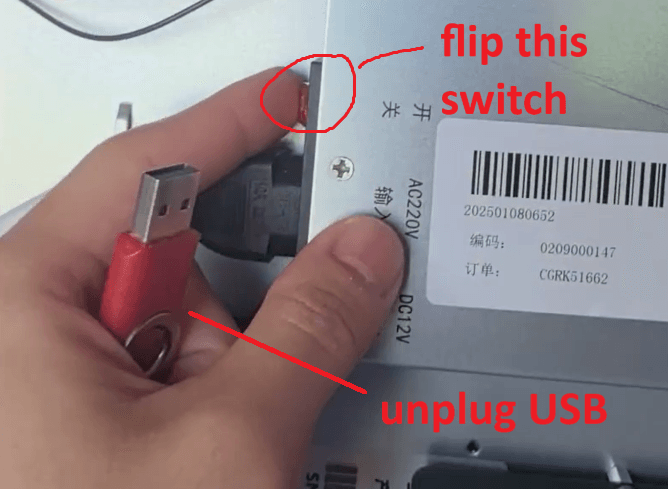
If the restart freezes, this may be because the USB was not unplugged. Simply unplug the USB, flip the rear power switch off and back on, and the machine will fully reboot, showing the Android logo before returning to the main product screen.


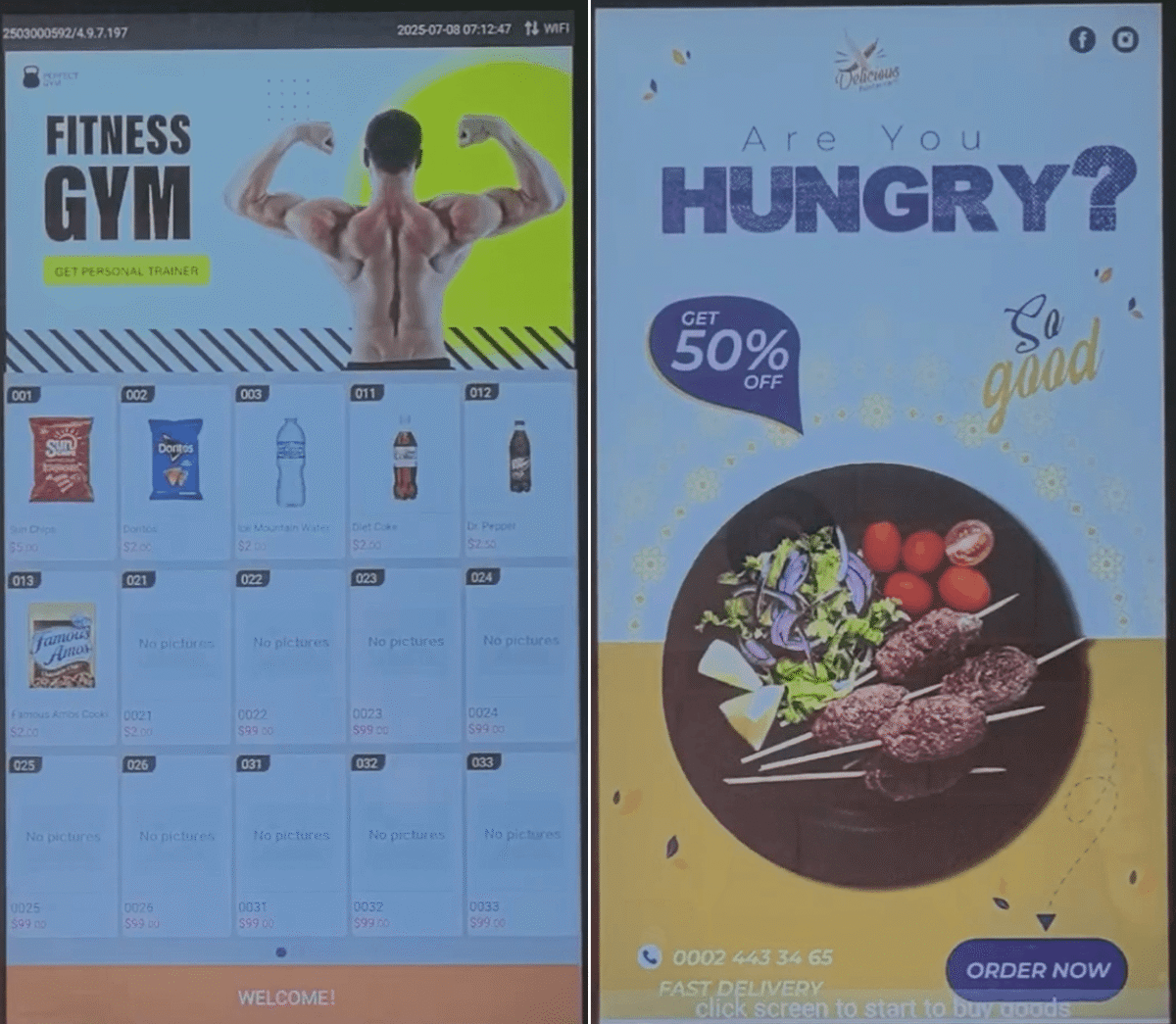
Once restarted, the banner advertisements will appear along the top of the product screen, rotating through all photos and videos you uploaded. After about 2 minutes of inactivity, the machine will automatically switch to the full-screen advertisements, cycling through each image or video. Customers can tap the screen at any time to return to the vending screen and browse products.