
Doing this step, you configure customer-facing contact information, hide the Android navigation bar to prevent tampering, and use a temporary password to access the settings menu. You verify card reader settings, check Android system settings, and confirm the machine is set to the correct local currency.
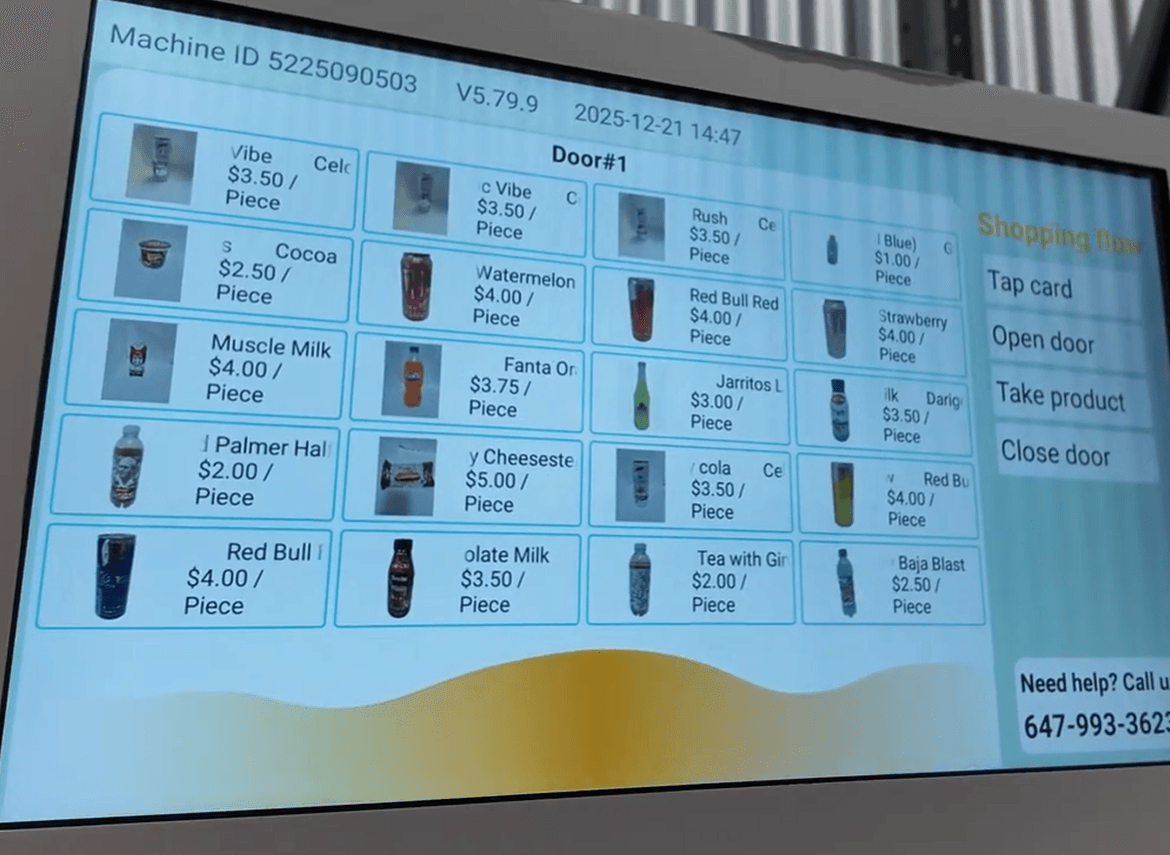
You can display contact information on the AI Cooler screen so customers know who to contact if issues arise:
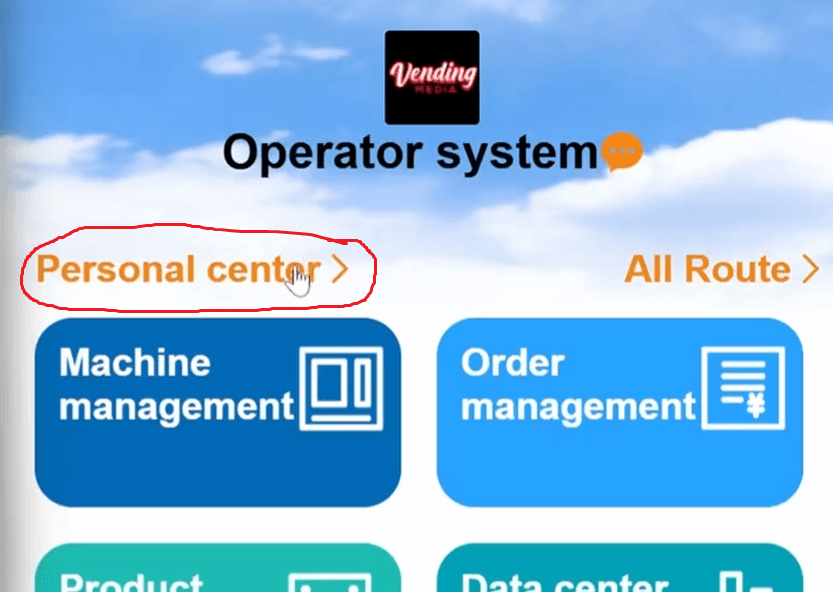
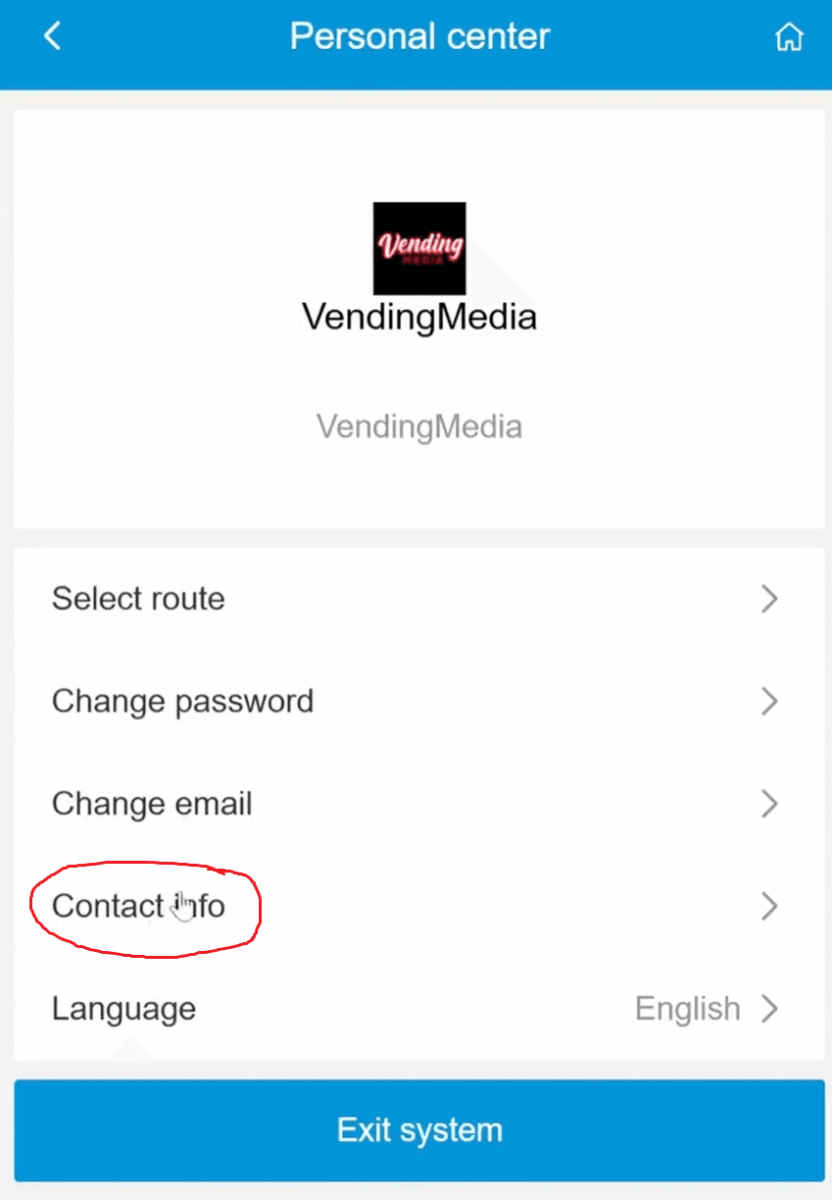
In the online dashboard, go to Personal Center → Contact Info.
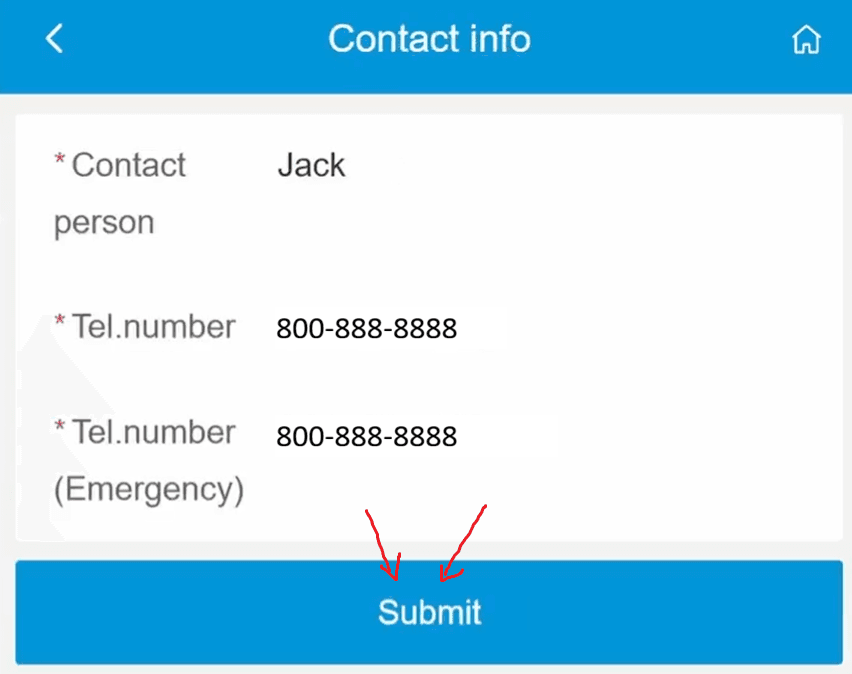
Enter the responsible person’s name and contact number.
Click Submit to save.
This information will appear on the AI Cooler product screen.
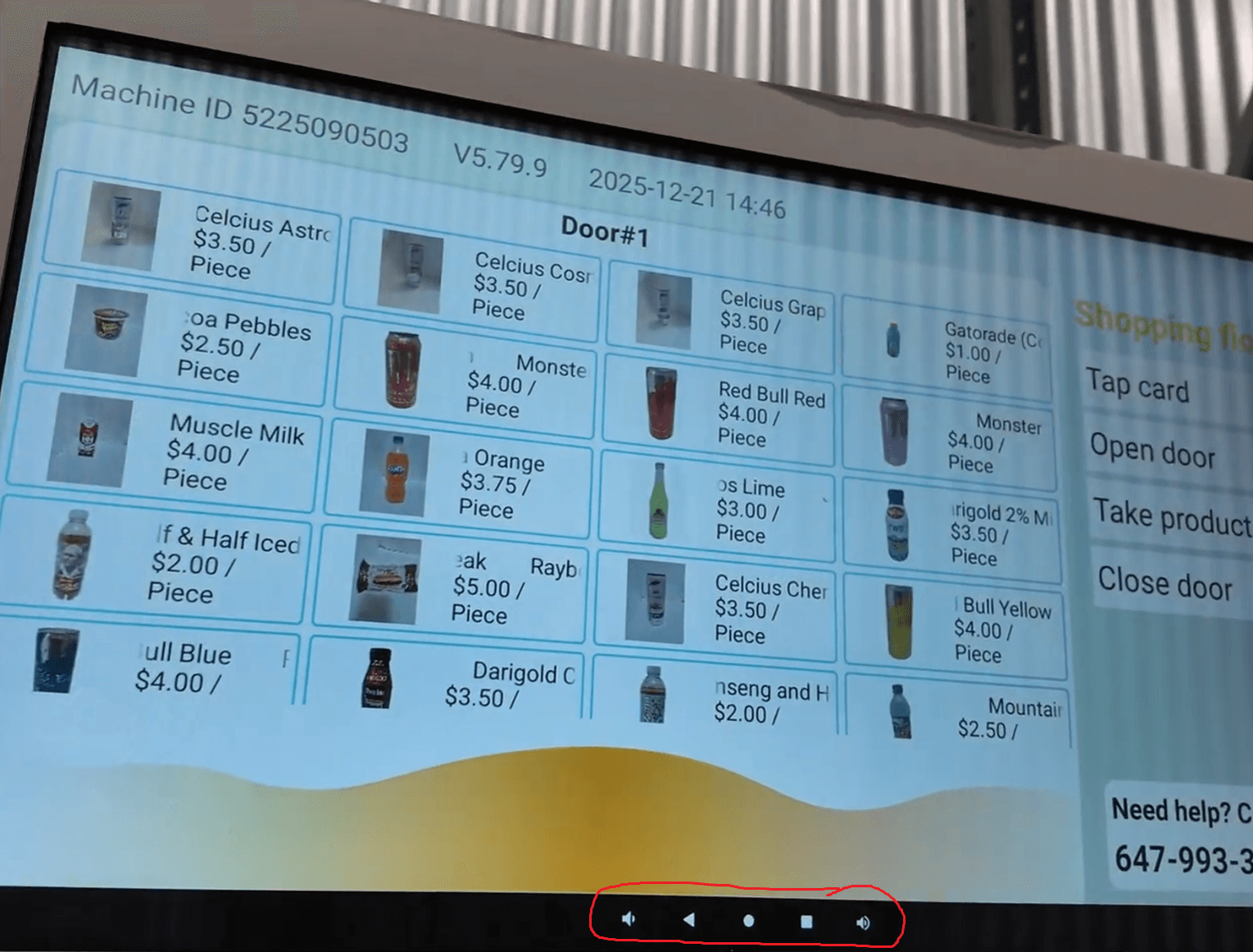
Hiding the navigation bar prevents customers from accessing settings:
On the machine, tap the circle icon.
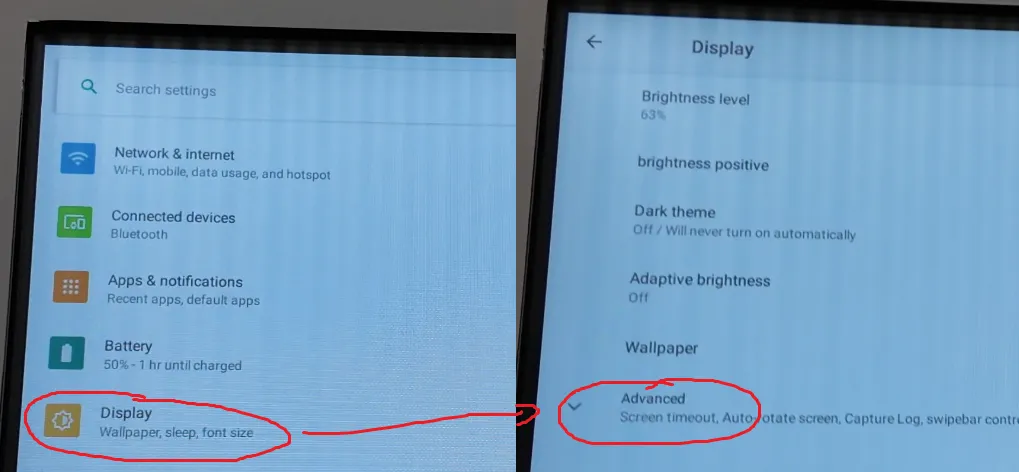
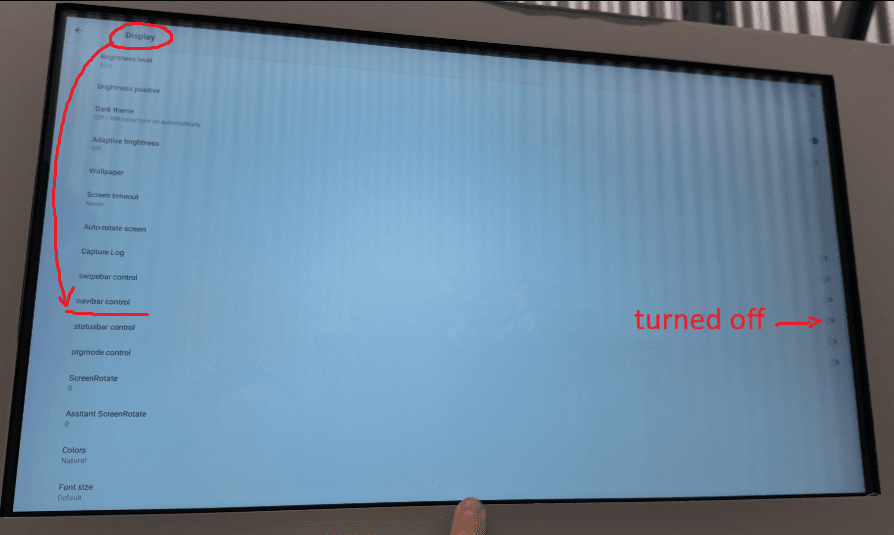
Scroll up and go to Settings → Display → Advanced → NaviBar Control.
Turn OFF to hide the Android navigation bar.
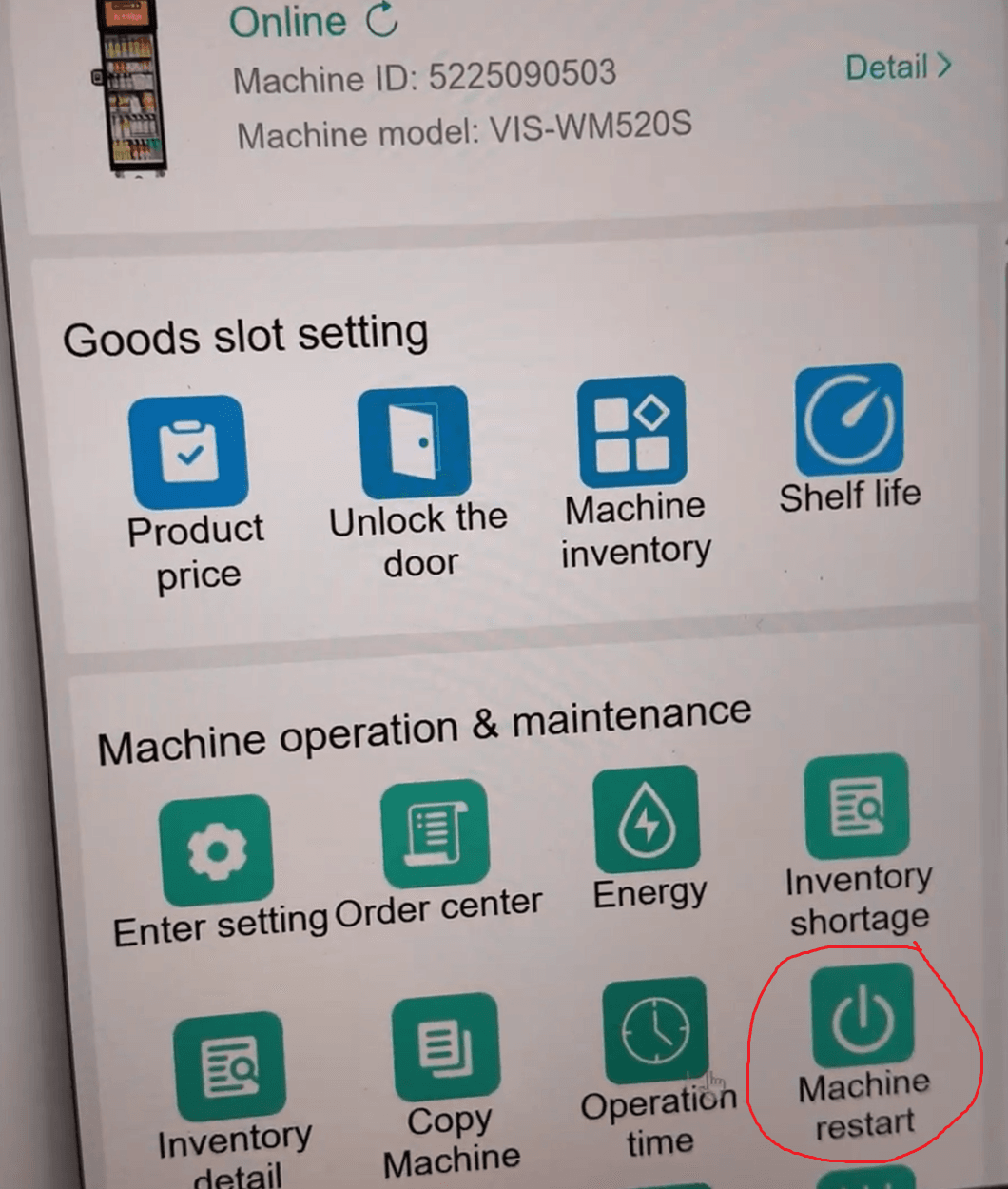
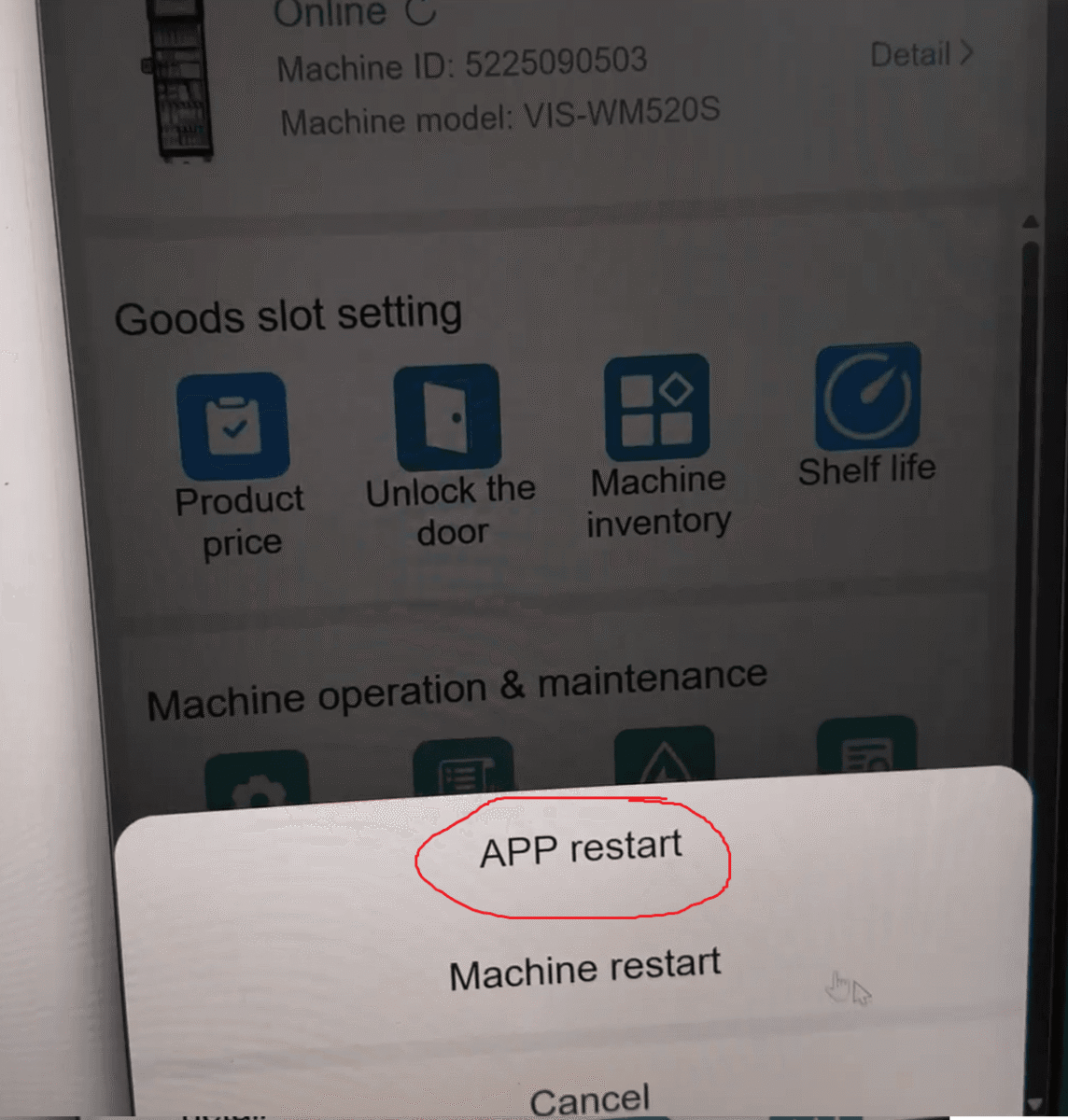
After hiding the navigation bar, restart the vending app to return to the product screen:
On the mobile dashboard, select the machine.
Click Machine Restart → App Restart.
The machine will restart and return to the vending screen, displaying products and your contact information.
You can see that the android navigation bar is now hidden.
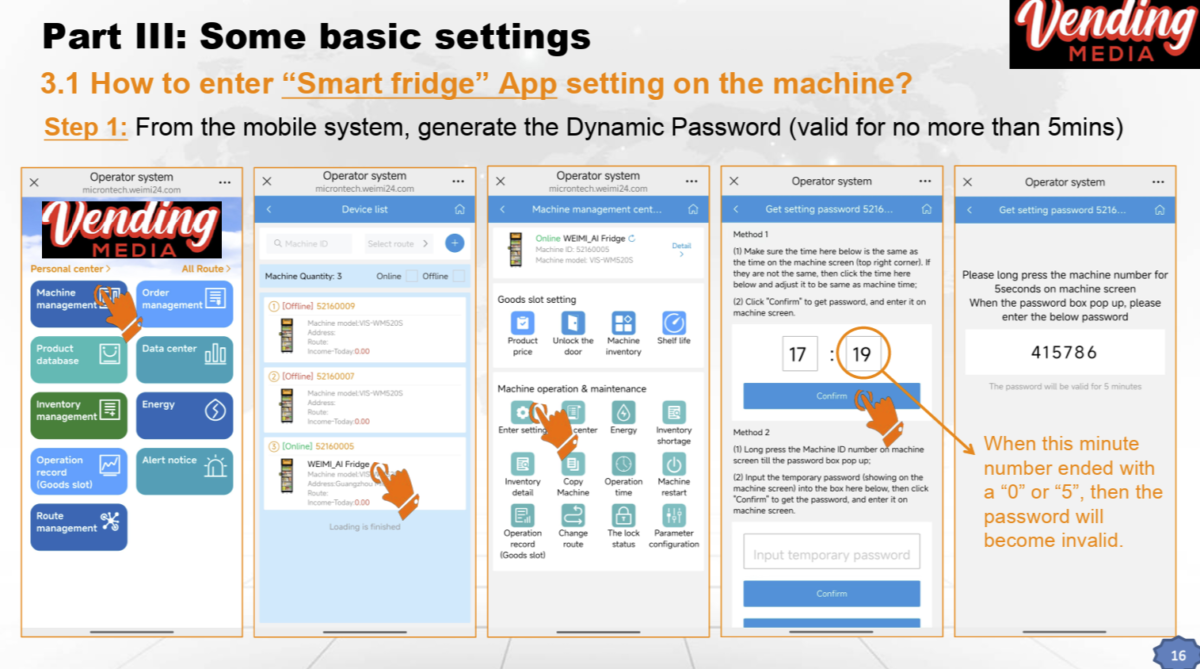
Once the navigation bar is hidden, you need a temporary password to access settings:
On the mobile dashboard, click Enter Setting.
Confirm the time and click Confirm to generate a 6-digit password (valid for 5 minutes).
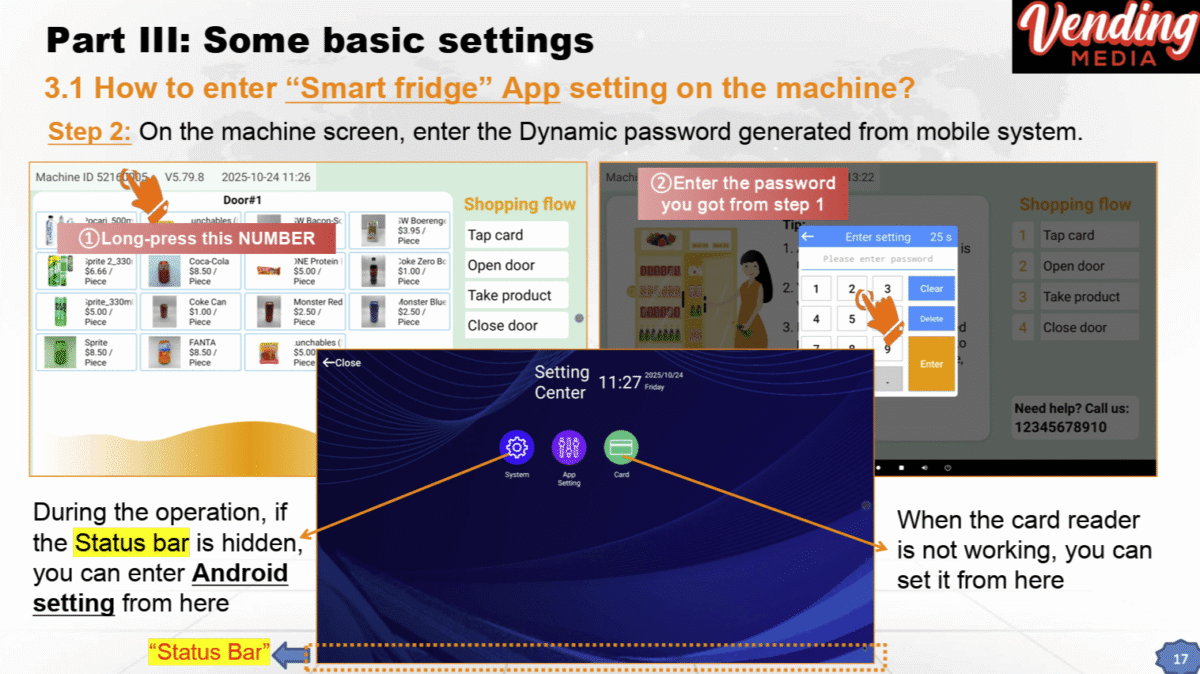
On the machine, press and hold the machine ID and enter the password.
You are now back in the settings menu.
Inside the settings menu:
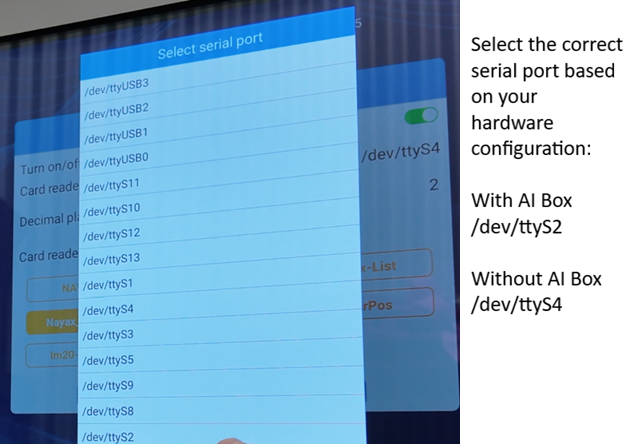
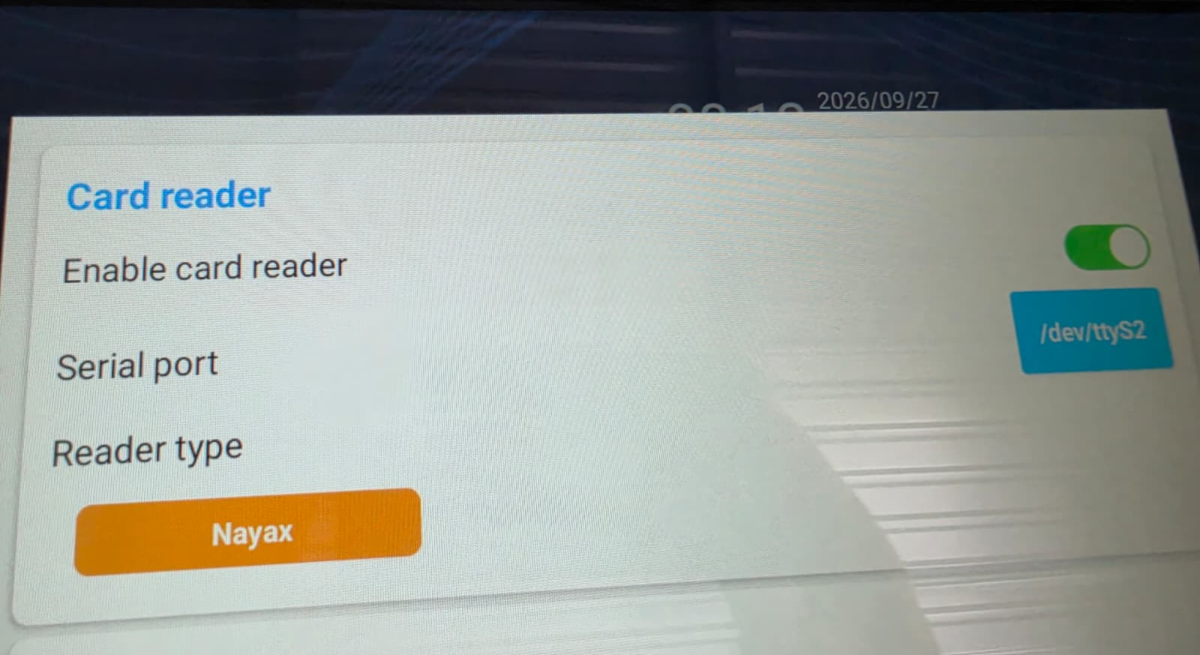
Go to Card.
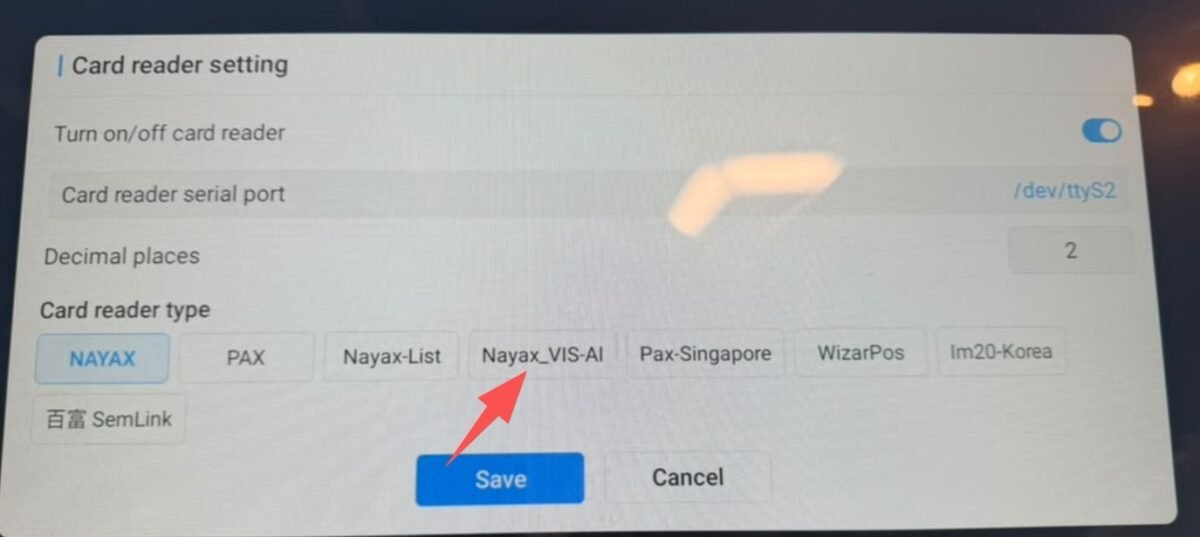
Ensure the card reader is enabled.
For the card reader serial port, the default without AI box is ttys4 and with AI box ttys2. Make sure the correct one is selected.
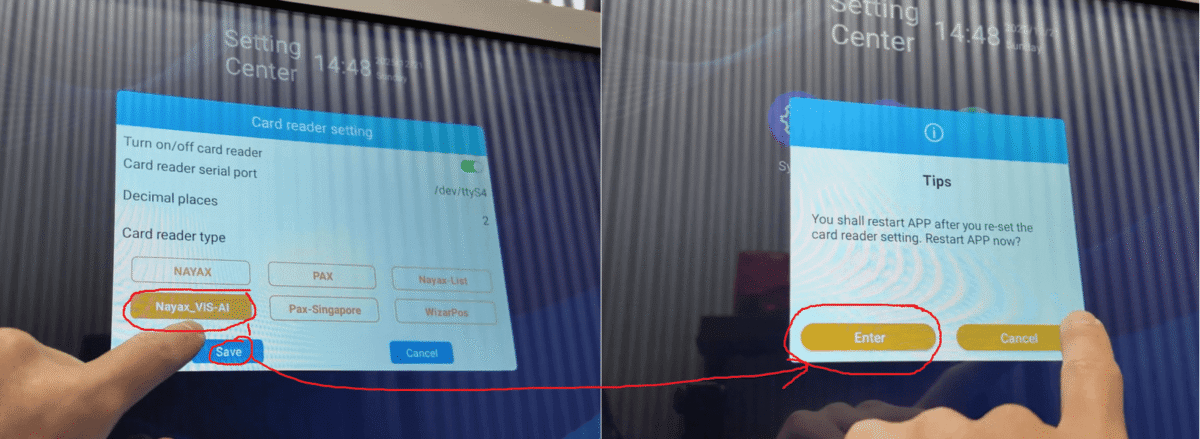
If you have Nayax, confirm the card type is Nayax_VIS-AI (if the option is available) and Nayax (if Nayax_VIS-AI is not available).
If you have a different card reader type, select the appropriate option (i.e. WizarPOS or PAX)
Click Save (a restart prompt may appear, make sure you restart to save the settings).
Ensure your machine uses the correct local currency:
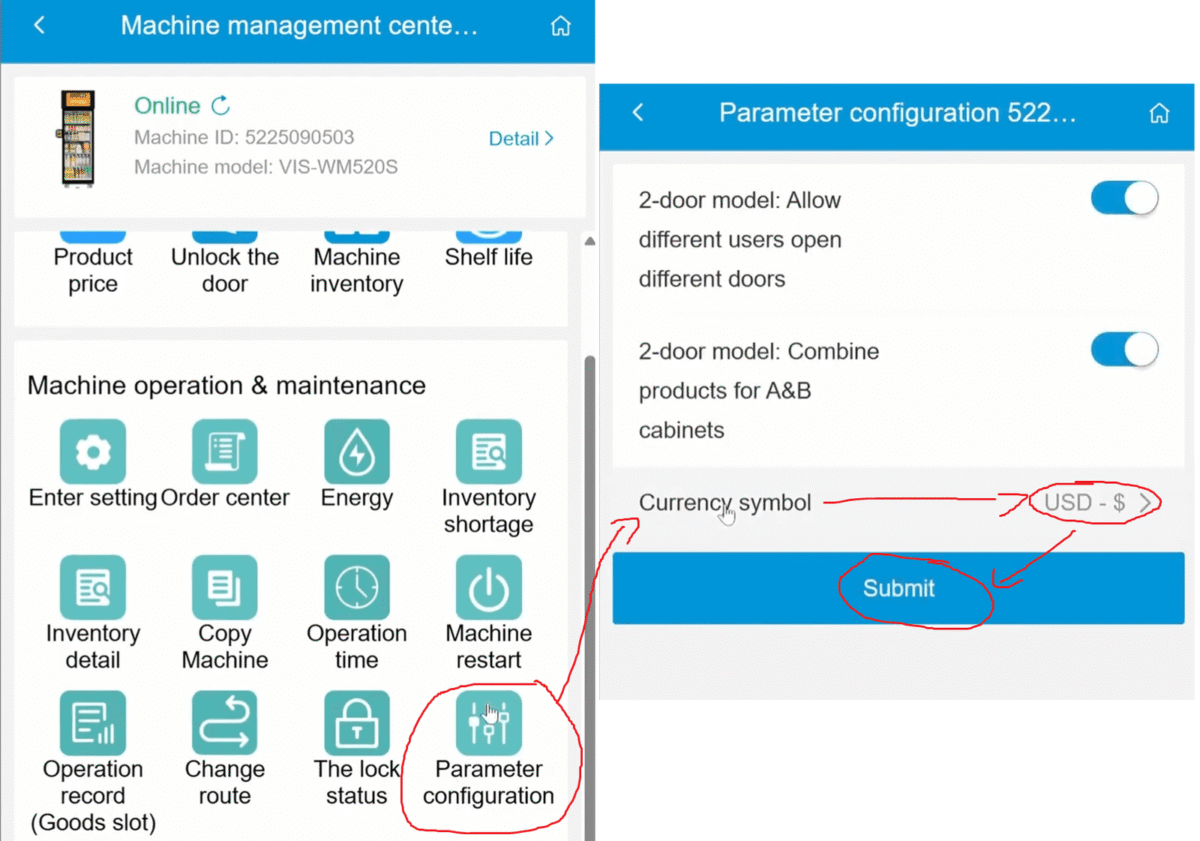
In Machine Management, select your machine.
Scroll to Parameter Configuration → Currency symbol.
Select the appropriate currency:
USD for the United States
CAD for Canada
Click Submit to save. The machine will restart with the updated currency.
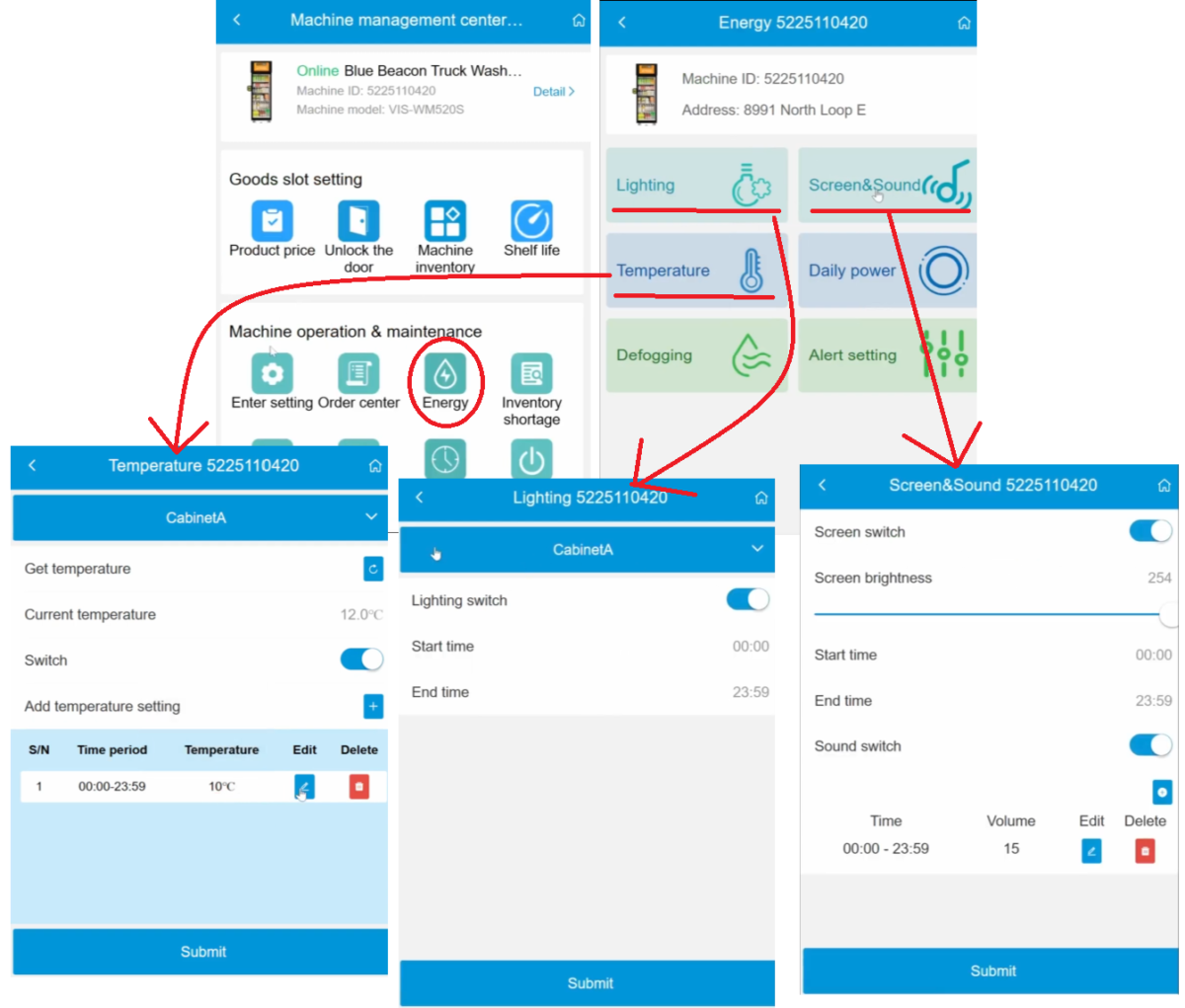
To ensure your machine’s energy settings are configured correctly, follow these steps:
In Machine Management, select your machine.
Click on Energy to access the three primary settings:
Temperature: If a temperature setting is not already listed, click the + button to add one. Keep the default schedule set to 00:00–23:59 and enter your desired temperature level.
Lighting: Use the toggle switch to turn the lights on or off. You can also create a custom schedule so the lights only operate during specific hours.
Screen & Sound: Toggle the screen on or off, adjust display brightness, or set a schedule for screen operation. Similarly, you can enable or mute the audio, change its volume, and restrict sound output to specific times of day.
Once you have updated your preferences, click Submit to save your changes.